Studying is easier when your screen can handle notes, lectures, research, and assignments side by side. The best ultrawide monitor can reduce window switching and make long study sessions feel more organized.
In this roundup, we focus on models that balance productivity, eye comfort, resolution, and practical features like USB-C, adjustable stands, and strong multitasking support.
Best 10 Ultrawide Monitors for Studying Picks for 2026
Study-Ready Multitasker
Samsung 34" Ultra-WQHD 100Hz Eye Care Monitor

- 21:9 ultrawide with 3440 x 1440 resolution
- Eye care tools help reduce strain during long sessions
- PBP/PIP make split-screen studying easier
Best For: students who need a roomy, comfortable multitasking display
USB-C Study Hub
Philips 34" Curved UWQHD USB-C Monitor

- USB-C Power Delivery supports one-cable laptop setups
- 3440 x 1440 ultrawide screen boosts workspace
- Built-in speakers and USB hub add convenience
Best For: students with USB-C laptops who want an organized desk
Budget Multitask Pick
Samsung 34" SJ55W Ultrawide Monitor
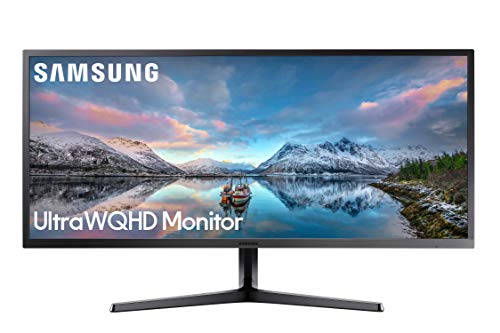
- 3440 x 1440 resolution gives plenty of study space
- PBP and PIP support side-by-side workflows
- VESA mount support and HDMI/DP connectivity
Best For: students wanting a simple ultrawide for research and coursework
Comfort-Focused Premium Pick
Dell 34 Plus USB-C Curved Monitor

- 120Hz and FreeSync Premium keep motion smooth
- ComfortView Plus helps reduce blue light exposure
- USB-C 65W power delivery keeps desks tidy
Best For: long study sessions and cable-light laptop setups
Wide-Desk Multitasker
LG 34U530A-W 34-inch UltraWide IPS for Study
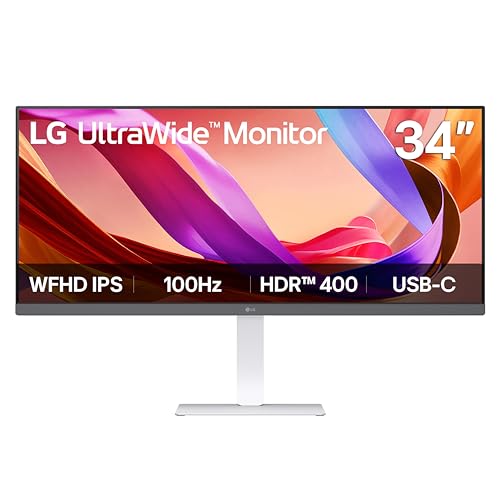
- 34-inch 21:9 screen for split-screen studying
- Reader Mode and IPS panel for comfortable viewing
- USB-C, HDMI, DisplayPort, and adjustable stand
Best For: Students who want a comfortable everyday ultrawide for multitasking and reading
Fast-Scroll Study Pick
Sceptre 34" Curved Ultrawide QHD

- 3440 x 1440 WQHD for roomy multitasking
- 165Hz and 1ms for smooth scrolling and motion
- Curved 21:9 design with built-in speakers
Best For: Students who want a fast curved ultrawide for study and entertainment
Comfort Pick
LG 34" 120Hz Ultrawide with Reader Mode
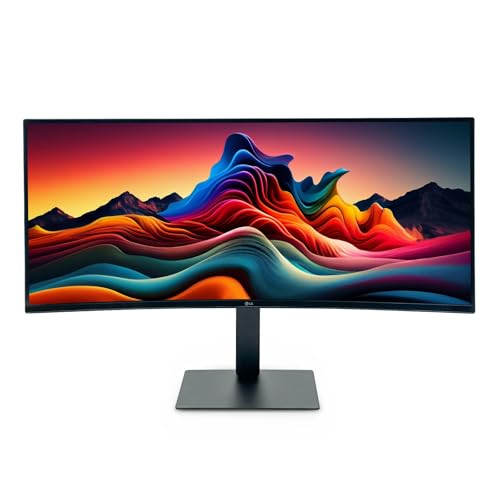
- 34-inch 3440 x 1440 ultrawide screen
- Reader Mode for longer reading sessions
- Height, tilt, and swivel adjustments
Best For: students who want a comfortable, flexible monitor for extended reading and multitasking
Value Pick
LG 34" USB-C Ultrawide for Student Workspaces

- 3440 x 1440 ultrawide workspace
- USB-C with up to 65W power delivery
- Reader Mode and split-screen controls
Best For: students who want a feature-rich ultrawide with simple laptop connectivity
Study-Ready Multitasker – Samsung 34" Ultra-WQHD 100Hz Eye Care Monitor
If you want an ultrawide monitor for studying that makes split-screen work feel easy, this Samsung 34-inch Ultra-WQHD model is built for exactly that. The 21:9 panel gives you a lot of room for notes, browser tabs, PDFs, and video calls, while the 3440 x 1440 resolution keeps text and coursework looking sharp.
Best For: Students who want a simple, roomy display for documents, research, and multitasking.
Pros:
- 21:9 ultrawide layout with 3440 x 1440 resolution for more workspace
- Eye Saver Mode, Flicker Free, and ambient light sensor help reduce eye strain
- 100Hz refresh rate makes scrolling and everyday use feel smoother
- PBP and PIP support two sources for side-by-side study setups
Cons:
- 2 HDMI and 1 DisplayPort inputs are solid, but not especially abundant
- HDR10 is included, though this is still a productivity-first monitor
- Best feature set is aimed more at multitasking than premium creator work
This is a practical pick if your study routine involves constant switching between apps and documents. It focuses on comfort and usable screen space rather than flashy extras, which makes it a smart everyday choice.
USB-C Study Hub – Philips 34" Curved UWQHD USB-C Monitor
This Philips ultrawide monitor for studying is a strong choice if you want a single-screen setup that can also simplify your desk wiring. Its 34-inch 3440 x 1440 panel gives you plenty of room for research, writing, and video lessons, while USB-C with power delivery can handle a laptop with one cable.
Best For: Students using a USB-C laptop who want a cleaner desk and wide multitasking space.
Pros:
- USB-C with Power Delivery lets you connect and charge with one cable
- 3440 x 1440 ultrawide resolution expands your workspace for study tasks
- 100Hz refresh rate and Adaptive-Sync keep motion smooth
- Built-in speakers and USB hub add convenience for a student desk
Cons:
- Curved glossy VA panel may not suit everyone’s preferences
- Heavier design than some competing 34-inch models
- Listed gaming-first in the product notes, so study-focused extras are fairly practical rather than specialized
If you want a monitor that doubles as a docking-style hub, this model stands out. It’s especially useful for students who want to keep their setup tidy without giving up the extra width that makes multitasking easier.
Budget Multitask Pick – Samsung 34" SJ55W Ultrawide Monitor
For ultrawide monitors for studying, this Samsung 34-inch SJ55W gives you the core benefits without overcomplicating the setup. The 3440 x 1440 resolution and 21:9 aspect ratio provide enough room to keep notes, textbooks, and a browser open side by side, which is ideal for homework and research.
Best For: Students who want a straightforward ultrawide monitor for everyday coursework and multitasking.
Pros:
- 34-inch 21:9 screen with 3440 x 1440 resolution for efficient multitasking
- PBP and PIP support dual-source workflows
- AMD FreeSync and Low Input Lag Mode improve responsiveness
- VESA compatibility and HDMI/DP connections add setup flexibility
Cons:
- 60Hz refresh rate is slower than newer 100Hz and 120Hz options
- Contrast ratio is lower than some VA competitors listed here
- No USB-C connectivity in the supplied specifications
This is a no-frills ultrawide that focuses on space, clarity, and practical multitasking tools. If you do not need higher refresh rates or USB-C, it remains a sensible study monitor.
Comfort-Focused Premium Pick – Dell 34 Plus USB-C Curved Monitor
If you spend long hours at your desk, this Dell ultrawide monitor for studying puts comfort and clean connectivity front and center. The 34-inch 3440 x 1440 VA panel offers a wide canvas for documents and browser tabs, while USB-C with up to 65W power delivery helps keep your workspace tidy.
Best For: Students who study for long stretches and want a comfortable, cable-light desktop setup.
Pros:
- 120Hz refresh rate and FreeSync Premium make scrolling and movement feel smooth
- Improved ComfortView Plus reduces harmful blue light emissions
- USB-C with up to 65W power delivery simplifies laptop charging
- Built-in 2x10W speakers and anti-glare screen add everyday convenience
Cons:
- Premium feature set likely puts it above basic study-monitor budgets
- VA panel prioritizes contrast and comfort over IPS-style color consistency claims
- Desk-mount design may take a little more space than simpler stands
This model stands out if comfort matters as much as screen size. It is a polished option for students who want a modern ultrawide with strong connectivity, good audio, and a more eye-friendly design.
Wide-Desk Multitasker – LG 34U530A-W 34-inch UltraWide IPS for Study
If you’re looking for ultrawide monitors for studying, this LG 34-inch model gives you a lot of horizontal room without jumping to a massive 4K setup. The 21:9 2560 x 1080 IPS panel, 100Hz refresh rate, and Reader Mode make it a practical pick for split-screen notes, research tabs, documents, and video calls.
Best For: Students who want a clean, comfortable ultrawide for everyday multitasking, reading, and note-taking.
Pros:
- 21:9 34-inch workspace makes it easier to keep multiple study windows open at once.
- Reader Mode and IPS viewing angles help with long reading sessions and document work.
- USB-C, HDMI, and DisplayPort simplify laptop and desktop connectivity.
- Height, tilt, and swivel adjustments help dial in a comfortable study position.
Cons:
- 2560 x 1080 is less detailed than ultrawide QHD options.
- Built-in speakers are convenient, but not a replacement for dedicated audio.
- Best suited to productivity rather than sharp, high-density visuals.
This LG is a solid study-first ultrawide if your priority is screen space, comfort, and easy laptop hookup rather than maximum resolution. It fits well in a student setup that values practical multitasking over premium image density.
Sharper Study Screen – Samsung ViewFinity S50GC 34" Ultrawide QHD
For ultrawide monitors for studying, this Samsung ViewFinity stands out because it pairs a 34-inch 21:9 layout with a sharper 3440 x 1440 QHD resolution. That extra detail helps when you’re reading dense PDFs, comparing research, or keeping lecture slides and notes open side by side.
Best For: Students who want a sharper ultrawide display for reading, research, and all-day productivity.
Pros:
- 3440 x 1440 ultrawide QHD gives more detail than 1080p ultrawides.
- Eye Saver Mode, Flicker Free, and ambient light sensing are designed for longer sessions.
- PBP and PIP make it easier to monitor two sources or two tasks at once.
- 100Hz refresh rate and thin bezels keep scrolling and multitasking smooth.
Cons:
- Brightness is rated at 300 cd/m², which is modest compared with some displays.
- No USB-C in the listed connectivity options.
- Its feature set is more productivity-focused than content-creation or gaming-first.
This is the strongest pick here if you want crisp text and more usable detail across a wide workspace. It’s especially appealing for study setups where eye comfort and screen clarity matter more than flashy extras.
Fast-Scroll Study Pick – Sceptre 34" Curved Ultrawide QHD
If you want ultrawide monitors for studying with extra speed for everyday use, this Sceptre combines a 3440 x 1440 WQHD panel with a 165Hz refresh rate and 1ms response time. It’s a versatile option for students who split time between research, assignments, streaming, and some gaming after class.
Best For: Students who want a fast ultrawide with plenty of workspace and a curved view.
Pros:
- 3440 x 1440 resolution offers plenty of room for documents, browsers, and notes.
- 165Hz refresh and 1ms MPRT make motion and scrolling feel very smooth.
- Curved 21:9 format can make a wide screen feel easier to take in at a desk.
- 99% sRGB and built-in speakers add extra versatility for mixed use.
Cons:
- The VA panel and 280 cd/m² brightness may not suit every preference for study work.
- It emphasizes speed more than office-specific features like USB-C or advanced eye-care tools.
- Curved screens are not ideal for everyone when working with straight-line layouts.
This Sceptre is a good fit if you want a study monitor that feels quick and roomy without losing everyday flexibility. It leans a bit more toward hybrid productivity and entertainment, but it still handles academic multitasking well.
Editor’s Pick – Samsung 34" USB-C Ultrawide for Focused Study
If you want ultrawide monitors for studying that can handle essays, research tabs, and video lectures at the same time, this Samsung 34-inch curved model is built for exactly that workflow. The 3440 x 1440 display and 21:9 layout make multitasking feel less cramped, while the 1000R curve and eye-care features are aimed at longer sessions.
Best For: Students who want a clean USB-C setup and a curved screen for all-day multitasking.
Pros:
- 3440 x 1440 ultrawide resolution gives plenty of space for split-screen studying.
- USB-C with up to 90W charging helps keep laptop setups simple and organized.
- 1000R curvature, flicker-free tech, and TUV-certified eye care are practical for long study sessions.
- 100Hz refresh rate can make cursor movement and general use feel smoother.
Cons:
- 34-inch curved format may be more monitor than some smaller desks need.
- It is positioned as a business/productivity display, so it is not the cheapest option in the group.
Overall, this Samsung is the most polished pick if you value a tidy desk and want studying to feel organized across multiple windows. Its mix of USB-C, eye comfort tools, and ultrawide workspace makes it especially practical for students who live in documents and browsers.
Comfort Pick – LG 34" 120Hz Ultrawide with Reader Mode
For ultrawide monitors for studying, this LG brings a roomy 3440 x 1440 canvas plus an ergonomic stand that helps during long note-taking or reading sessions. The included Reader Mode is a useful touch if you spend hours looking at text, and the 120Hz panel adds a smoother feel when switching between apps or scrolling through coursework.
Best For: Students who want a comfortable, flexible monitor with strong all-around performance.
Pros:
- 34-inch 3440 x 1440 display offers broad space for research and multitasking.
- Reader Mode helps reduce blue light for longer reading sessions.
- Adjustable height, tilt, and swivel make it easier to set a comfortable position.
- 120Hz refresh rate gives a smoother overall experience than standard office panels.
Cons:
- As a renewed model, it may not appeal to buyers who prefer brand-new hardware.
- It lacks USB-C in the supplied specs, so docking a laptop is less convenient.
This is a strong choice if comfort matters as much as screen space. Between Reader Mode and a highly adjustable stand, it fits the kind of study routine where you are on the monitor for hours at a time.
Value Pick – LG 34" USB-C Ultrawide for Student Workspaces
This LG is a practical option if you want ultrawide monitors for studying with strong everyday features instead of extras you may not use. The 34-inch 3440 x 1440 panel gives you room for side-by-side documents, while USB-C with up to 65W power delivery keeps a laptop setup simple. Reader Mode and LG’s split-screen controls also make it easy to build a study workspace around one display.
Best For: Students who want a feature-rich ultrawide with USB-C and easy multitasking tools.
Pros:
- 3440 x 1440 ultrawide resolution is ideal for multiple windows at once.
- USB-C with up to 65W power delivery supports cleaner laptop connections.
- Reader Mode is designed for longer reading and study periods.
- OnScreen Control and Picture-by-Picture help organize schoolwork across inputs.
Cons:
- 100Hz is good for smoothness, but it is not the fastest option listed here.
- VA panel and 300 cd brightness may not be the top choice for users wanting maximum panel punch.
For students who want useful productivity features without overcomplicating the desk setup, this LG checks a lot of boxes. It combines ultrawide space, USB-C, and reading-friendly software in a straightforward package.
How We Picked the Best Ultrawide Monitors for Studying
We focused on displays that make schoolwork more efficient without adding unnecessary complexity. That means a usable screen shape for split-screen work, a resolution that keeps text sharp, and features that support long sessions such as eye-care modes, flicker-reduction tools, and low-blue-light presets.
We also favored models with practical connectivity. For students, USB-C with power delivery, HDMI, DisplayPort, and built-in hubs can simplify desk setup and reduce cable clutter.
Quick Comparison: What Matters Most
For Ultrawide Monitors for Studying, the main tradeoff is usually between resolution and price. A 3440 x 1440 panel gives more workspace and clearer text than 2560 x 1080, while 100Hz to 120Hz can make scrolling and window movement feel smoother. If you plan to connect a laptop, USB-C may be one of the most valuable features in the category.
Key Buying Factors for Ultrawide Monitors for Studying
Screen Size and Resolution
A 34-inch ultrawide is the sweet spot for most students. Look for WQHD or UWQHD if you want sharper text and more room for side-by-side documents, browser tabs, and note-taking apps.
Panel Type and Comfort
IPS panels usually offer stronger viewing angles and more consistent color, while VA panels often deliver better contrast for reading in darker rooms. Eye comfort features matter either way, especially if you spend hours reading PDFs or coding.
Connectivity and Desk Setup
USB-C is ideal for modern laptops because it can handle video, data, and charging through one cable. A built-in USB hub, multiple HDMI or DisplayPort inputs, and a height-adjustable stand are also useful for a cleaner, more ergonomic workspace.
Refresh Rate and Extras
A 100Hz display is a nice upgrade over 60Hz for general productivity. Higher refresh rates are not essential for studying, but they can make daily use feel smoother. Features like Picture-by-Picture, Picture-in-Picture, and built-in speakers can also be handy for multitasking.
Who Should Buy Which Ultrawide Monitors for Studying?
If you mainly write papers, browse research, and manage assignments, a value-focused 34-inch ultrawide with 100Hz and eye-care features is usually enough. If you use a laptop and want one-cable convenience, prioritize USB-C and power delivery. If you split time between studying and light creative work, step up to a sharper WQHD panel with better color and contrast. If you are on a tighter budget, a WFHD model can still be a smart pick, especially if you want the extra horizontal space more than the highest pixel density.
Overall, the best choice depends on how much desk space you have, how many devices you connect, and whether clarity or convenience matters more for your workflow.